
Starting State
Use the vizij-web workspace root:
cd /home/chris/Code/Semio/vizij_ws/vizij-webThis walkthrough uses apps/tutorial-fullscreen-face, which is the smallest maintained Vizij runtime app in the workspace.
What You Need
Install dependencies once:
pnpm installStart the tutorial app:
pnpm run dev:tutorial-fullscreen-faceOpen the local Vite URL that appears in the terminal.
Quick term bridge
Keep these four labels distinct while you work through the first run:
| Term | What it means on this page | What it does not mean yet |
|---|---|---|
face artifact | the bundled sample face being loaded | your own authored face |
runtime bundle | the app-facing bundle handed to VizijRuntimeProvider | the whole application shell |
app shell | the tutorial app that hosts the face and hooks | a deployed operator endpoint |
deployment endpoint | a later Deploy concern with an exposed control path | this first-run tutorial surface |
What Success Looks Like Up Front
Before you inspect any code, know what a healthy first run should look like:
- the page opens without a blank canvas or crash
- the face becomes visible after loading finishes
- moving the mouse changes eye gaze
- pressing the number keys changes visible facial poses
If the face never appears, stop and use Validation Checkpoints or Troubleshooting Matrix before continuing.
Walkthrough
1. Launch the maintained runtime tutorial
From vizij-web, run:
pnpm run dev:tutorial-fullscreen-faceWhen the browser opens, wait for the face to settle into its ready state.
Expected result:
- you may briefly see a loading or initialization message
- the face appears centered on screen
- the app stops looking transitional and starts behaving like a live face surface
Current visual anchor:
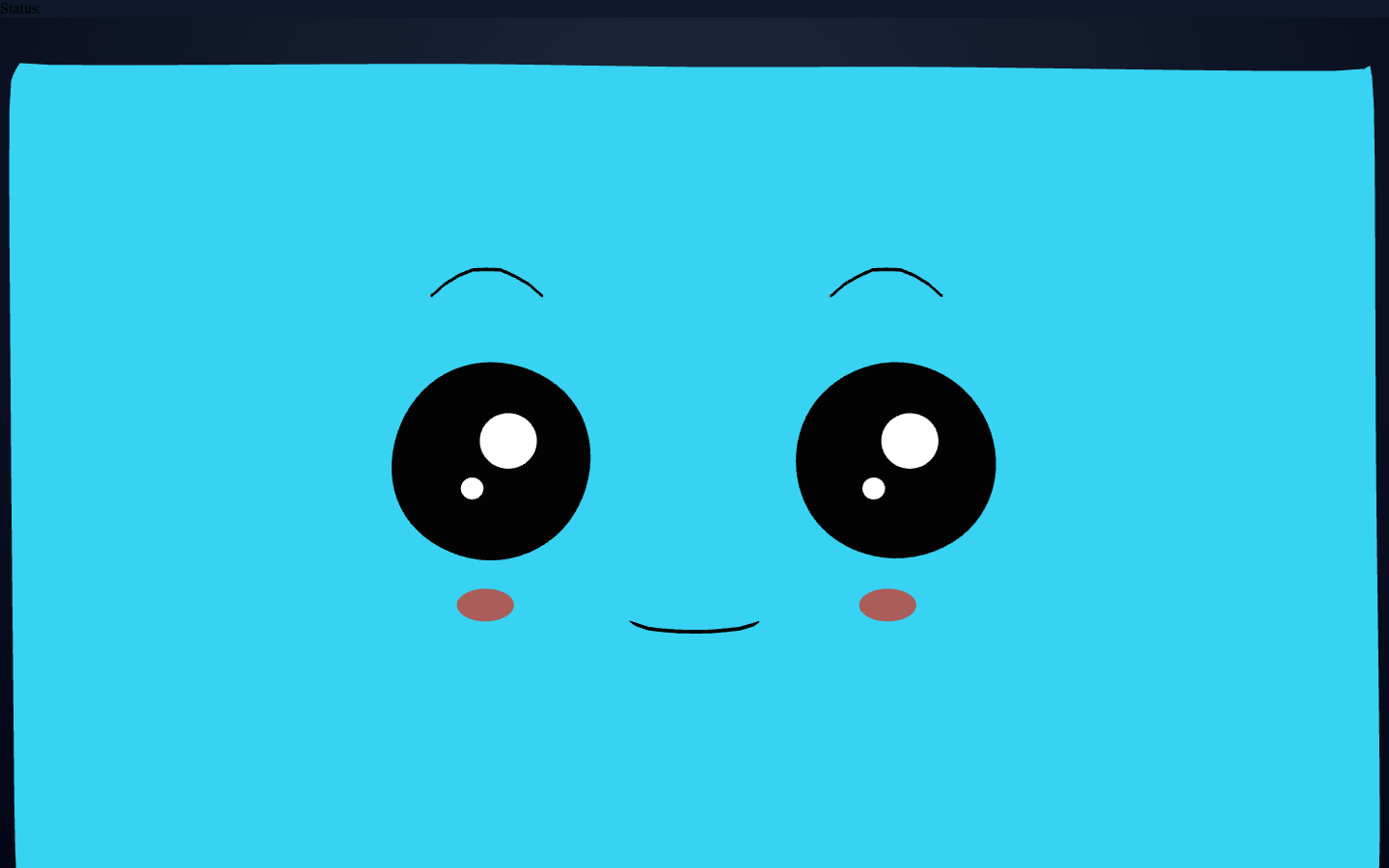
Use this still to confirm the baseline face state before you test motion or hotkey-driven changes.
2. Prove that the face is live, not static
Do two checks immediately:
- move the mouse across the viewport and watch the eyes follow
- press the number keys and watch visible expression or pose changes trigger
Expected result:
- gaze moves continuously with pointer movement
- pose changes feel discrete and key-driven
- repeated interactions continue working, which proves the runtime is actively staging inputs rather than showing a prerecorded asset
This is the first useful Vizij confidence test. A rendered face is not enough. The face has to respond.
Motion anchor:
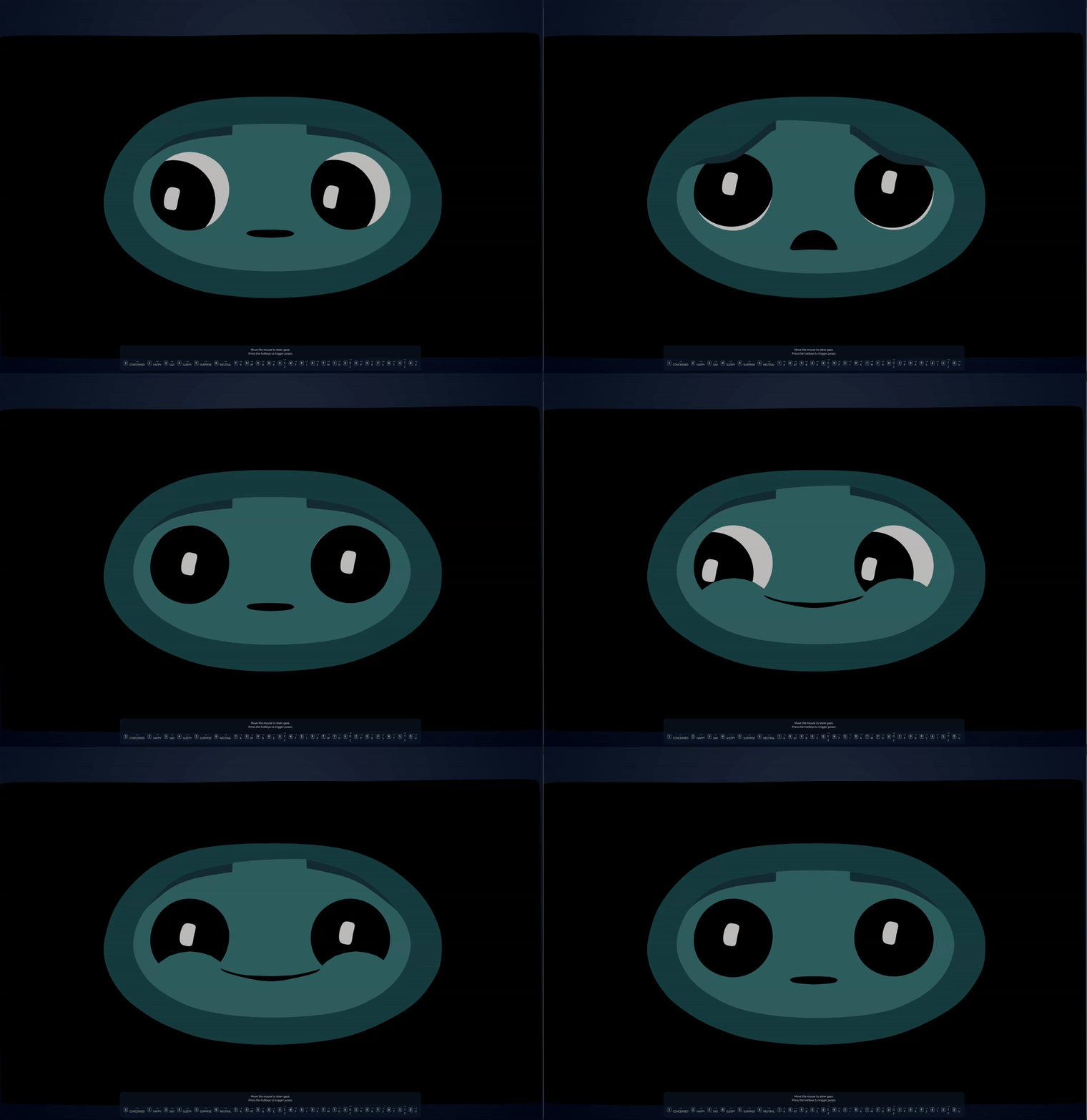
The still screenshot above proves the settled ready state. This loop is the stronger proof that the surface is live: gaze keeps steering and hotkey-triggered expressions come and go through the runtime.
3. Inspect the runtime skeleton in code
Open these files:
vizij-web/apps/tutorial-fullscreen-face/src/FaceApp.tsxvizij-web/apps/tutorial-fullscreen-face/src/hooks/useMouseGaze.tsvizij-web/apps/tutorial-fullscreen-face/src/hooks/usePoseHotkeys.ts
In FaceApp.tsx, find the three pieces that define the app:
const assetBundle: VizijAssetBundle = {
  namespace: "fullscreen-face",
  glb: {
    kind: "url",
    src: faceAssetUrl,
    aggressiveImport: true,
  },
  pose: {
    stageNeutralFilter: (_id, path) => !path.includes("/color/"),
  },
};

export function FaceApp() {
  return (
    <VizijRuntimeProvider assetBundle={assetBundle} autostart>
      <VizijRuntimeHud />
      <FaceRuntime />
    </VizijRuntimeProvider>
  );
}
What each piece is doing:
assetBundletells Vizij what face bundle to loadVizijRuntimeProviderowns loading, controller registration, and runtime stateFaceRuntimeandVizijRuntimeFacerender and control the resolved face
If you understand those three pieces, you understand the core shape of the maintained Hello Face path.
4. Connect the visible behavior to the maintained hooks
Open useMouseGaze.ts and usePoseHotkeys.ts.
You are looking for two different control patterns:
- mouse gaze writes eye-position inputs continuously while the pointer moves
- pose hotkeys animate named pose-weight paths up and back down
You do not need to memorize every line yet. You do need to notice that both behaviors are driven through runtime APIs, not through one-off DOM tricks.
Expected result:
- the gaze hook explains why the eyes follow the mouse
- the hotkey hook explains why number keys trigger expression changes
- the code lines up cleanly with the behavior you already saw in the browser
5. Name the maintained runtime pattern
At this point, you should be able to say:
- this app loads one existing face bundle
- the runtime provider resolves the face and keeps track of readiness
- small hooks stage real runtime input writes
- the face is rendered by the same runtime stack other Vizij apps build on
That is the entire reason this app is the first maintained route through the guidebook.
Why This Page Matters
Hello Face is not trying to teach all of Vizij.
It is trying to remove the first doubt:
- can I run a real Vizij face locally
- can I make it do something visible
- can I find the code path that produced what I just saw
Once those are true, later control, integration, and deployment pages have something solid to build on.
What This Page Is Not Proving Yet
This page proves a live runtime surface. It does not yet prove:
- that you understand path semantics in detail,
- that you have an application integration shell of your own,
- that you have authored or customized the face,
- that you have a deployment endpoint an operator can drive.
Choose Your Next Route
The canonical next step is First Control Interactions.
Use one of these branch points after that:
| If your next goal is… | Open this next |
|---|---|
| understand the visible interactions before going deeper | First Control Interactions |
| get to a player shell and keep the fast route | Minimal Web Player after Control |
| start owning the face and its behavior | Tweak an Existing Face after Control |
Fast Recovery If It Fails
Use these shortcuts instead of guessing:
- if dependencies are missing or stale, rerun
pnpm install - if the page loads but the face never appears, use Validation Checkpoints
- if the face appears but does not respond, continue to First Control Interactions and compare the expected behavior there
- if the app shows an error state, use Troubleshooting Matrix
Recommended Next Steps
Continue to First Control Interactions.
That page uses the same app, but it slows down and explains what the two maintained interaction patterns are actually doing.